WordPress Uptime Monitoring Plugin: Guardr Is Now on WordPress.org
Guardr now ships a WordPress uptime monitoring plugin: security grade, uptime and response time in wp-admin, scanned externally with no agent on your server.
TL;DR - The Guardr WordPress plugin is now live on WordPress.org. It adds a widget to wp-admin showing this site’s security grade, uptime percentage and response time, plus a one-click rescan button. The plugin itself runs nothing on your server. Every scan happens externally, from Cloudflare’s edge, and Guardr confirms an outage across 3 separate global regions before treating it as down. Connect with either an enrollment token or an existing API key. Only this site’s domain is sent, nothing else.
What is covered
- Why a monitoring plugin that runs inside WordPress has a structural problem
- Why WordPress first
- What the widget shows
- Connecting the plugin
- One-click rescan
- What the plugin sends, and what it does not
- What this plugin does not do yet
- Install it
- Frequently asked questions
Why a monitoring plugin that runs inside WordPress has a structural problem
A monitoring plugin that only runs inside WordPress shares a fate with the site it is supposed to watch. If the server is down, unreachable or overloaded, the plugin cannot run either, and it cannot tell you the one thing you actually need to know at that moment.
The Guardr plugin does not have this problem, because it is not the thing doing the monitoring. It is a window in wp-admin into an engine that runs entirely outside your server, at Cloudflare’s edge. Nothing runs on your server beyond the plugin’s own wp-admin screens: no background agent, no code injected into your theme or front end, no access to your server’s file system or database beyond the two settings the plugin itself stores.
When a scan finds the site down, Guardr does not act on a single failed request. The outage is confirmed across 3 separate global regions before it is treated as real, so a network blip local to one region does not turn into a false alert. This is the same multi-region confirmation Guardr already runs for every site in the dashboard. The plugin does not duplicate it or approximate it. It reads and displays the same result.
Why WordPress first
Most small business websites run on WordPress. The sites people already bring to Guardr for scanning reflect that fact plainly. A plugin meets those site owners inside the admin screen they already open every day, instead of asking them to remember a separate dashboard exists.
It is a straightforward match between where the platform’s users already are and where Guardr’s own users already are.
What the widget shows
Once connected, the Guardr menu in wp-admin shows this site’s live data:
- Security grade - the same A through F grade shown in the Guardr dashboard
- Uptime percentage - the site’s uptime over the monitored window
- Response time - both the average response time and the latest response time
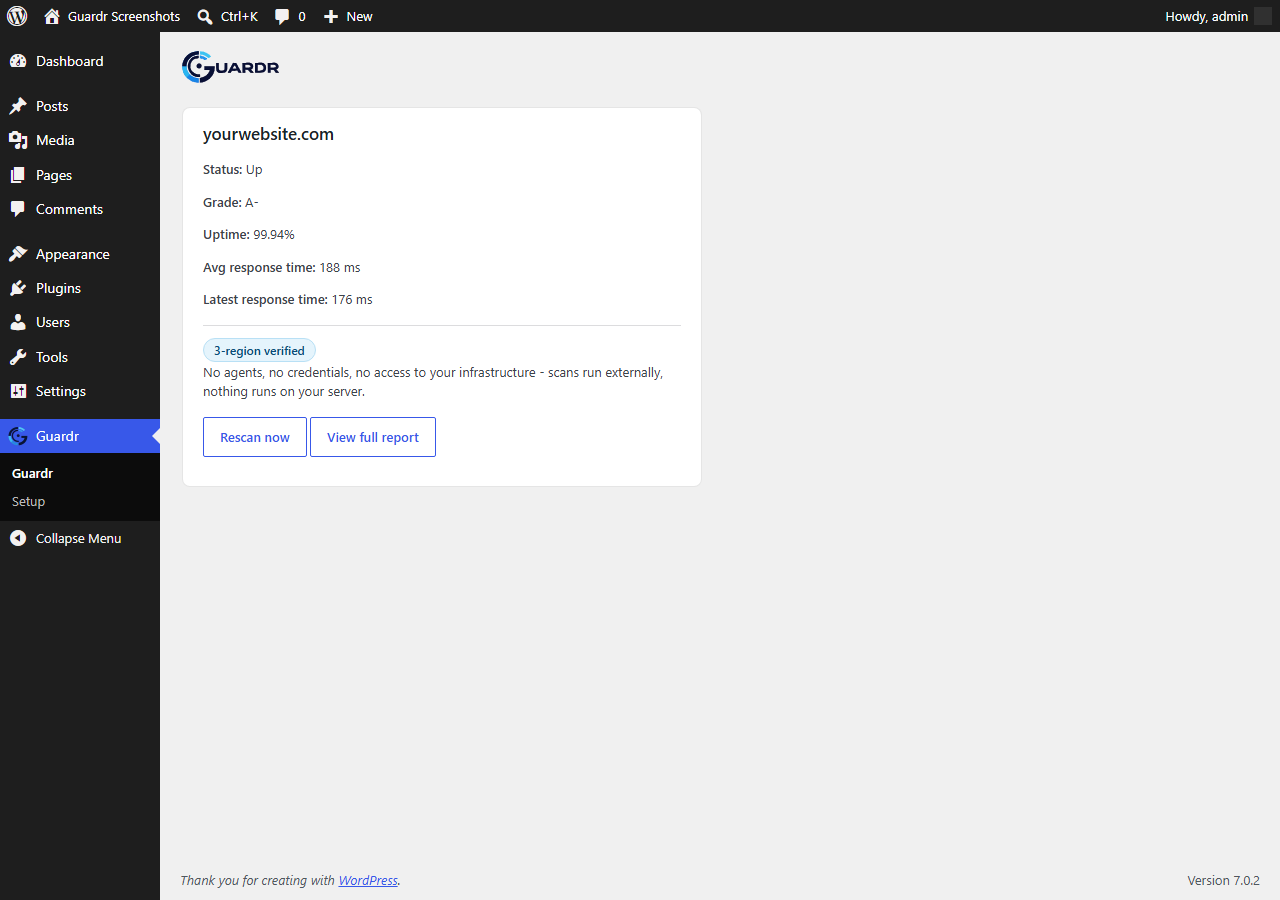
The Guardr widget after a site connects, with grade, uptime and response time populated.
Alongside the numbers, the widget carries the same “3-region verified” trust badge used across Guardr: a short explanation that the site is probed from Guardr’s own network, and that a failure is confirmed from 3 global regions before anything is treated as down.
Connecting the plugin
Setup is two options, one screen. Go to Guardr → Setup in wp-admin and choose either path:
- Paste an enrollment token generated from the Guardr dashboard. This redeems the token for a permanent key bound to this site only.
- Paste an existing Guardr API key if one already exists for this site.
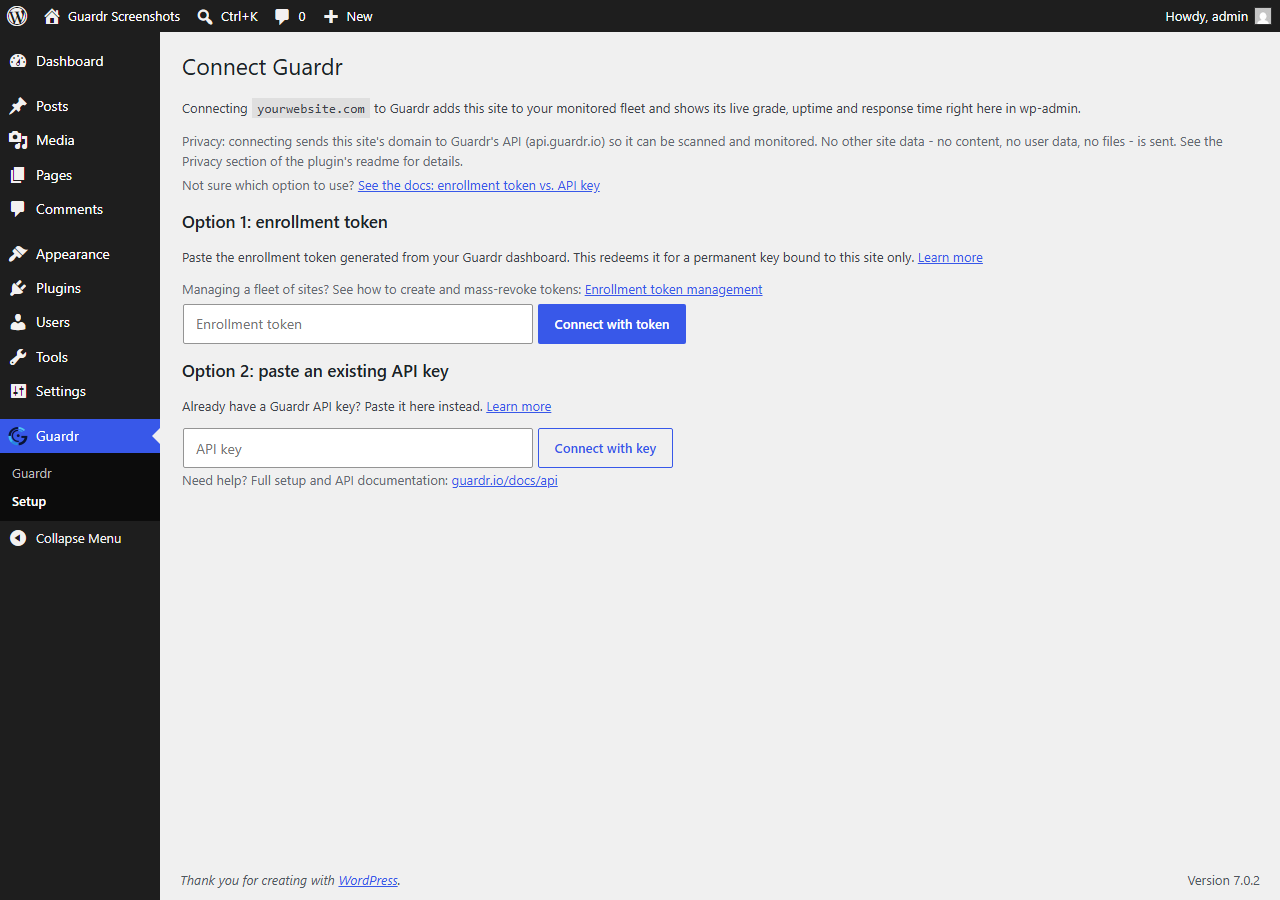
Two connect paths on one screen: an enrollment token, or an existing API key.
Either path ends the same way: a key stored in this site’s own WordPress options table, never displayed again in plaintext once setup completes, the same handling the Guardr dashboard already uses for its own keys.
This plugin covers one site. Anyone managing more than one site with Guardr does not need to install the plugin on every site to get value from it. The full fleet view, every site on the account together, already lives on the Guardr dashboard at guardr.io/dashboard.
One-click rescan
The widget includes a Rescan now button next to View full report. Triggering it calls the same scan endpoint Guardr already runs on a schedule, so a site owner who just fixed a misconfiguration does not have to wait for the next automatic check to see the grade update.
What the plugin sends, and what it does not
This is worth stating plainly, because it is the question anyone installing a security tool should ask first.
The plugin sends this site’s domain name to Guardr’s API (api.guardr.io) over HTTPS, so it can be scanned and monitored. No page content, no post or user data, no files and no visitor information ever leave the site through this plugin.
Every request also includes the site’s Guardr API key, to authenticate as the connected account, and a generic identifier of the plugin itself and its version, sent through the standard HTTP User-Agent header as Guardr-WordPress-Plugin/0.1.3. The plugin explicitly sets that header itself rather than using WordPress’s own default, which would otherwise include the site’s URL and WordPress version on every request, including ones that have no other reason to disclose it.
No data from the plugin goes to any third party other than Guardr itself.
What this plugin does not do yet
Stated plainly rather than glossed over:
- No public “Secured by Guardr” badge yet. Planned for a later release.
- No incident-based email alerting from the plugin itself yet. Handled today through the connected Guardr account’s existing notification settings.
- No MainWP integration yet. A possible future release.
Install it
- From wp-admin, go to Plugins → Add New Plugin and search for “Guardr”, or install it directly from the WordPress.org plugin page.
- Activate it. A new Guardr item appears in the wp-admin sidebar.
- Go to Guardr → Setup and paste an enrollment token or an API key from the Guardr dashboard.
- The Guardr menu now shows this site’s live grade, uptime and response time.
Full walkthrough with dashboard screenshots at guardr.io/docs/getting-started/#wordpress.
Frequently asked questions
Does the plugin run anything on my server?
No. Scanning happens externally, from Cloudflare’s edge network. The plugin itself only calls the Guardr API over HTTPS to fetch and display results. It does not scan the site itself.
Where is my API key stored?
In the site’s own WordPress options table. It is never displayed again in plaintext once setup is complete, the same as the Guardr dashboard’s own key handling.
I manage several sites with Guardr. Do I need to install this on all of them?
No. The Guardr dashboard already shows every site on the account without any plugin installed. The plugin is for a single site’s own wp-admin convenience and for showing that site’s manager a live trust signal, not for fleet management.
What WordPress and PHP versions does it require?
WordPress 6.0 or higher, PHP 7.4 or higher.
Is this the same security grade shown on guardr.io?
Yes. The plugin reads and displays the same grade, uptime data and response time Guardr already computes for the connected site. It does not run a separate or lesser check.
Try the free scanner
Not on WordPress, or not ready to install a plugin yet. Scan any site free at guardr.io, no login required.
Scan your site free at guardr.io →
The free scan returns a security grade with a breakdown of what is misconfigured and platform-specific fix instructions for Cloudflare, Nginx or Apache.
- Anatoli